I think it is safe to say that every designer out there has a huge amount of files on their computer. It just comes with the territory. From stock files to client files, our computers are over run with files both big and small. Not having some sort of organized system in place can quickly lead to lost files, headaches, and even the occasional accidental delete. While every one has their own method of doing this, I wanted to share some of my thoughts and practices on organizing graphic design files.
The methods below are documents from a Mac perspective. That said, many of the below methods can still be applied in Windows. To do some of these things in Windows however, you may need to download some additional applications.
I would also appreciate it if you shared how your organized your designs files. If you have a organization method that has proved to be exceptionally useful, tell us about it in the comments section below.
Change Icons for Frequently Used Folders
Being that we are designers, it only makes since that we are visual thinkers. I don’t just mean we think creatively, but that we learn and see things in a more visual manner than most people. It is this theory that led me try out replacing some of my most commonly visited folders with with some bold icons.
My thoughts on this are that since I am a visual person, I am more likely to quickly glance at and remember folder locations that have some sort of bold icon associated with them rather than a basic folder icon. I know it doesn’t usually take too terribly long to find folders that you frequently use, but you would be surprised at just how much faster this method works. It seems to me if you have only a few bold images associated with common folders, you can find those folders much more quickly with a visual scan.
Obviously this method won’t work if you do it for all of your folders, as that would defeat the purpose. What I am suggesting is to do it only for your top four or five folder that you use the most. For me it is the following:
- Design Resources - This folder holds all of my stock images, icons, PSD template, etc.
- Blog Images - I do a lot of linkbait articles and this is where I store all the images and folders associated with various clients and articles.
- Client Work - This one is a little self explanatory. This is were al my paid and client design work goes.
- Personal Projects - I run a number of other sites and businesses, this folder is where I can them organized.
I’m not suggesting everyone use this format, but I think a lot of you probably have something similar in place already. If you don’t, using the above list could be a good start to helping you organize or re-organize you design files.
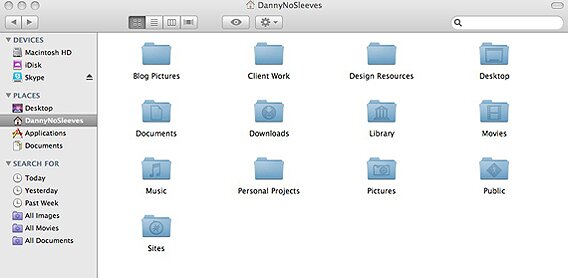
Before I changed the icons on my top four folders, the looked like the image below. They had the same color and look to all of my other folders. While I could find the files by looking for them, I couldn’t just do a quick visual scan to find the folder I wanted.
Before
After
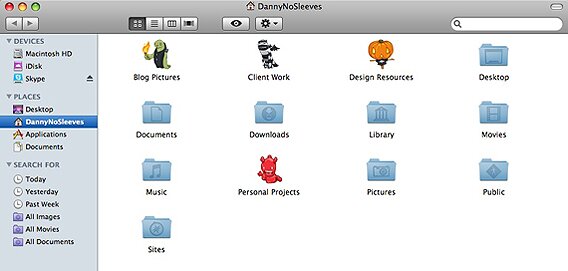
Surely you can see how much easier and faster it would be to navigate to these folders now that they stand out a bit more. Over time you will easily associate said image to the folder and you will be able to find the folder you are looking for without even thinking about it.
How to Change Folder Icons on a Mac
To change the folder icons on a Mac it is really just a simple matter of copy and paste. Check out the directions below:
Step 1
Select the volume, application, folder, or file whose icon you want to stamp onto another, just click the icon to select it.
Step 2
From the File menu, choose Get Info or press Command-I to open the Info window.
Step 3
Click the icon in the upper-left corner of the Info window to select it.
Step 4
From the Edit menu, choose Copy or press Command-C.
Step 5
Select the volume, application, folder, or file whose icon you want to replace.
Step 6
From the File menu, choose Get Info or press Command-I.
Step 7
Click the icon in the upper-left corner.
Step 8
From the Edit menu, choose Paste or press Command-V to replace the icon.
Organizing Your Stock Graphics
I use a lot of stock graphics. From vector files to photography to web elements, I have a lot of stock files. I have so much stock work it feels like I have bought every file off iStock Photo. In order to eliminate hunting for the right photo or graphic when I need it, I make it a point to keep my stock folder super organized. Every time I buy or download a new resources, I immediately put it in to the corresponding folder. This way I can find it right away.
Some people like to keep stock images associated with client work in the same general file with the rest of the clients files. If you only ever plan on using those stock files for that project, then this is perfectly fine. But, if you plan on keeping the resource filed away for future use, then this is a poor means of organizing your stock resources.
In the section above you will notice that I have a “Design Resource” folder. Inside of that folder I have several stock folders. Rather than have a single stock folder with all of my stock resources in it, I separate things up a bit. Below is a list of folders I have in my Design Resource folder:
- Icons
- Stock Photography
- Photoshop
- Vector Files
- Colors and Patterns
- Comps
- Audio
- Video
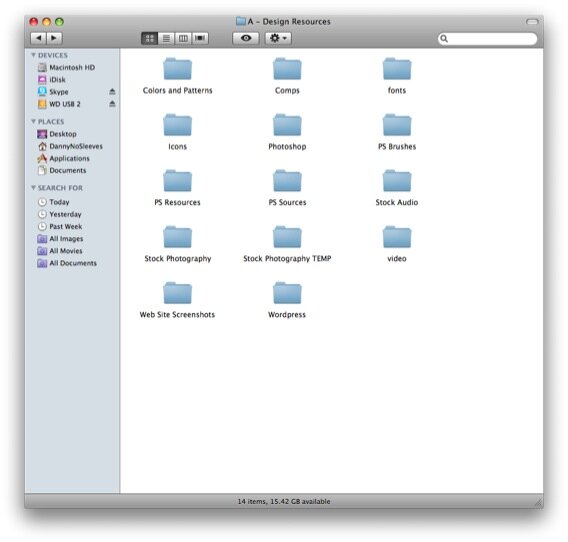
I won’t go into detail how I organize the inside of each folder, but I will give you some tips and suggestions on a few of the files based on my own personal organization method. Here are how I keep the inside of some of these folders organized:
Icons
This folder is pretty easy to keep organized. I usually just create a new folder for each icon set I buy or download. The only unique thing I may do here is if the icon set is a mini set, say 16×16 icons or something, I will usually mention that in the files name. For example, a folder of mini icons would read like:
MINI-Web-Gloss-Developer
I title the folder “mini” at the start because I like to keep my folders organized alphabetically. With “mini” at the start of the title, all of my “mini” icon folders end up in the same place. Yes, I could create a “mini icon” folder to keep them all in, but that would just result in an additional folder to click through which isn’t really necessary in my opinion.
Stock Photography
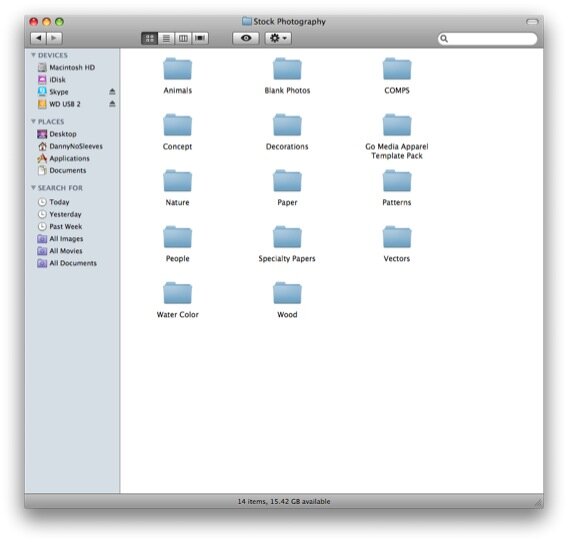
This folder is probably the most organized out of all of my design resources folders. I have a lot of stock photos and don’t want to hunt for them when I want them. Inside this folder I have a ton of category type folders. These folders are named similar to categories that you would find on stock photography sites. The amount of folders in this section grows based on the images that I acquire, but as of current, I currently have the following folders inside of my stock photography folder:
- Paper
- Specialty Papers
- People
- Animals
- Landscapes
- Backgrounds
- Conceptual
- Blank Photos
- Textures
Using Mac Color Labels
If you aren’t into changing folder icons, but still want some way to visually organize and separate your files, you can always use the Macs built in color labeling system. The App Storm blog has a great article on this where they talk about it a little more in depth. The idea is the same as with changing the icons, with the exception that it is a little more global. You will have to create a default set of labels that you can apply to a variety of your folders.

To set the labels all you have to do is open the Finder Preference screen. To do this open any Finder window, click on Finder in the menu bar, then click on Preferences. You can then set your globally labeling system accordingly. If you are really anal, you can even setup your iCal labels to match colors with your folder labels.

Assigning labels to a folder or files is as easy as Control clicking on a folder.


20 Comments
Great article, some very useful stuff in here that i gotta start using
I’m a new Photoshop user/designer and just got through reading this months Advanced Photoshop magazine, when I thought I really must work out a way to organise all these resources that I’m building up.
Then this article popped up in twitter, literally 5 minutes later. Spooky.
Great article mate.
Great article, I’m a new mac user and was wondering how to change icon folders! I didn’t know about the color system either, very resourceful. Thanks!
You must have been peeking at my files…uggh! Thanks so much for this, mine are a mess…love the new icons for the most commonly used, I’m off to clean up my files!
Great article, in a production environment with multiple people using files it is very difficult to have everyone on the same page as far as organizing files and naming conventions. Having a clean file system is critical..Thanks for the tips!
Funny, I kinda thought the article ended before it got to the messiest folder my computer used to have… The “Client Work” folder. Having about two dozen regular clients, some with daily, some with weekly, some with yearly project density the folders that are within the Client Work can get populated beyond any control unless you’re at least somewhat organized.
My system is as follows:
- Inside Client Work folder there are folders named after the clients
- Inside Client folders there are folders for projects, named projectname, or projectname_date if there’s more than one
Inside individual project folders there are:
- Original files (sent by the client or obtained somewhere else, possibly organized into folders by date to differentiate versions)
- Picture files (pics, photos, fonts etc. that are embedded into the design)
- Layout files (contains InDesign or Illustrator or Photoshop or www etc files named after the project + version number)
- Sent Emails (the versions of the work I’ve sent by mail, organized into folders named after their sending date so I can see where I was on a given date, possibly accompanied by a folder named after the Zip file password for encrypted files)
- Package folder (contains the final layout along with the accompanying files & fonts, if this is a web page then it’s a copy of the version on the server)
- Old stuff folder for old versions or something I’m not ready to throw into the trash yet
- …And finally: Miscellaneous folder for documents, info documents, ISBN numbers, tests, web site addresses, or anything else that doesn’t go anywhere else.
I have a small, easier to carry work disk where I keep current projects, plus a big archive disk where I move all the finished projects. I also have Time Capsule make a backup of both my current work drive and the entire archive both at home and at work so I have copies of everything in at least two different places. Hard drive space doubles much faster than my archive does these days so I just buy a larger disk that can accommodate everything if the previous one gets full. Large amount of free disk space can really make organizing easier, so get enough and routinely ditch files and versions you no longer need.
Hope I’m making any sense here. I really should written an article of my own, but couldn’t be bothered…
sweet! I wish I would have found this years ago but this seems to be a great approach so I’ll retweet it now anyways! Thanks for the tips!
It would have been nice to read how to change folders on a PC. Even though designers mostly use Mac, a good portion of 3D designers use PC.
Other than that, great suggestion. I try to clean up my folder ever so often. This is something else I can do to make things go quicker.
Deborah,
If you are using vista, right click on the folder, then click the customize tab…at the bottom you can choose an icon for the folder.
Thanks
I organize my files with a similar system, I use custom icons together with the mac colours system throughout my entire system.
Exemple: everything clients related is red, from iCal to the colours of my folders.
Here comes some things I use that speed up the access to my favorite folders.
First tip:
I use a little free app, called Camouflage you can find it at: http://briksoftware.com/products/camouflage/
Its a lighweight app and its main purpose is to hide everything on your screen and just leave your background image.
The neat thing is, you can double clic anywhere and it will open the folder of your choice that you can set in the Camouflage preferences panel.
Second tip:
Adding your favorite folder in the dock for easy access, you can also have them in the sidebar of the finder windows, coupled with custom icons or colours or both.
You can even add them in the toolbar of the finder windows.
I posted a little screen shot to illustrate what I’m talking about :
http://mmaraudeur.free.fr/screenshot_1.jpg
lately i founded tagging to be much more helpful with images, it really solves the problem of indexing one image containing several elements.
i use adobe bridge (picasa is good as well) which is easy to use and as a bonus shows preview os psd, movies, ai an so on…
Our office here in Phoenix, Arizona uses a very similar method to organize files and keep them from becoming to cumbersome.
This is very helpful. I have tried also changing the icons of my folder that I frequently used and now arranging my files according to your suggestion. Thank you very much!
Nice tips to follow it, i dont like junkies files and organizing something which ease the task is really worth of it. Well i use Win-Vista and i think your tips will sure help me in keeping mine files and folders.
hi to everyone, i found very useful to save the organization of folders inside dropbox’s (http://www.getdropbox.com) folder so i have automatic, transparent and free backup (with versioning) on line.
hope this will help
Sweet article and suggestions It’s time for me to organize all of my stuff
Great post, I’ll have to try this for sure. My desktop is like a whole junk of images and folders, i think this tools is gonna solve my problems
What are “Comps”
Otherwise this is a great tip.
The way i do my stock photo and vector files is like this..
..its your list except i added transport and other files
Transport
Textures
People
Patterns
Paper
Nature
Landscapes
Decorations
Conceptual
Buildings
Backrounds
Animals
this is so cool. i love the way your blog was designed. the wooden background really works with me. and i love the header. its really cool.
8 Trackbacks
[...] Excerpt from: How to Organize Graphic Design Files [...]
[...] eres diseñador en Outlaw Design Blog, el día de hoy tienen para ti, clases sobre como organizar tus archivos de diseño gráfico. Como te caerian 45 tutoriales, generadores de layouts, CSS Grid System que todo diseñador [...]
[...] How to Organize Graphic Design Files “Not having some sort of organized system in place can quickly lead to lost files, headaches, and even the occasional accidental delete. While every one has their own method of doing this, I wanted to share some of my thoughts and practices on organizing graphic design files.” [...]
[...] How to Organize Graphic Design Files [...]
[...] And to finish out the week…some good tips to help you waste time on Monday by teaching you how to better sort your design files. You know you want to be organized, let the Outlaw Design Blog show you how. [...]
[...] graphic design files – https://outlawdesignblog.com/2009/how-to-organize-graphic-design-files/ [...]
[...] How to Organize Graphic Design Files – “I think it is safe to say that every designer out there has a huge amount of files on their computer. It just comes with the territory. From stock files to client files, our computers are over run with files both big and small. Not having some sort of organized system in place can quickly lead to lost files, headaches, and even the occasional accidental delete. While every one has their own method of doing this, I wanted to share some of my thoughts and practices on organizing graphic design files.” [...]
[...] upon this great post at the Outlaw Design Blog that contains some tips and tricks for organizing graphic design files on your hard drive. It not [...]