Step 1
Create a new document in photoshop. For the sake of this tutorial, I will be using an 8×10 inch file at 72dpi. Feel free to adjust this to your liking.
Step 2
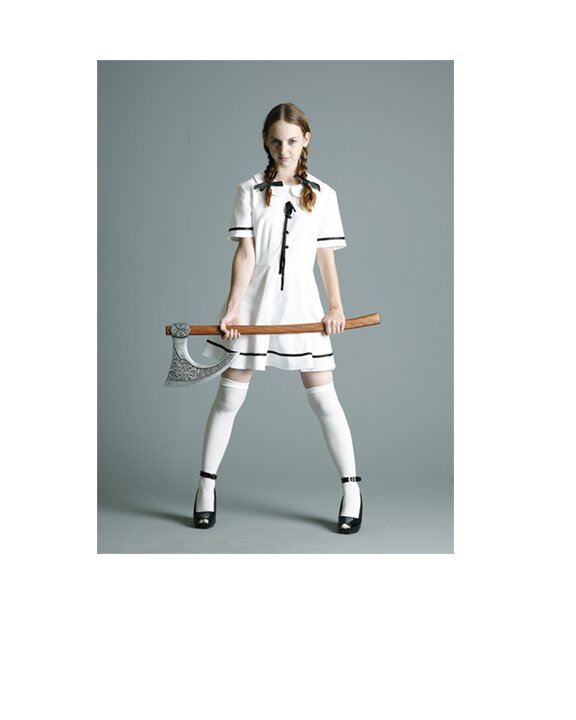
The first thing I want to do is find an image for the main portion of the poster and start editing it. I am using the following image:
Student Witch - 5 by *mjranum-stock - Be sure to read his terms on using his images.

Step 3
Re-size the image so that there will be room for the header and footer text.
Step 4
In this step we are going to do several things so that the image has the overall look we need for the poster.
First we will adjust the images levels. Image>Adjustments>Levels

Now we are going to add a slight surface blur to help achieve the vintage print feel. This filter will barely be noticeable. Filters>Blur>Surface Filter
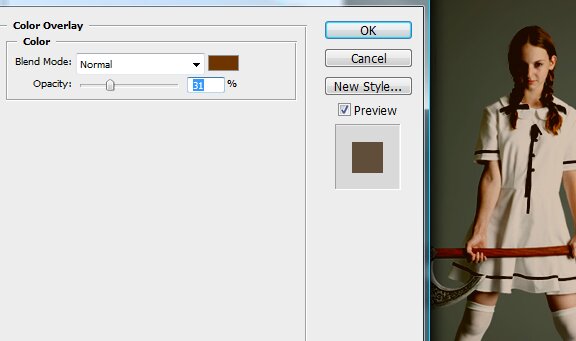
We need to get rid of the color in this image so that it will match the style of the poster. To do this, we will add a simple color overlay to the image layer. Click on the image layer>the right click on the layer>select Layer Properties>Color Overlay
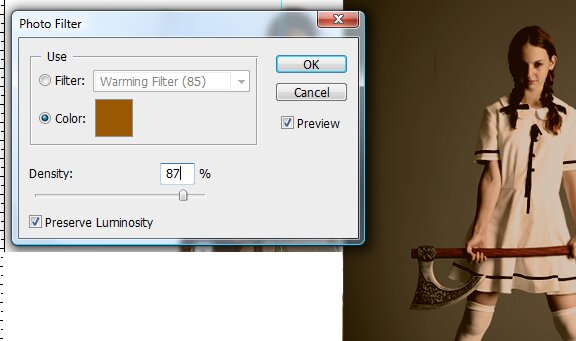
This is getting closer, but we still need to loose some color. Lets add a photo filter. Image>Adjustments>PhotoFilter
Click on the color block and change the color to #8a5902 and the Density to 87%
Lastly we will apply a Cross Hatch filter. Filters>Brush Strokes>Cross Hatch
Stroke Length: 4
Sharpness: 3
Strength: 1

Step 5
Now we will put the finishing touches on this image so we can start working on the rest of the poster.
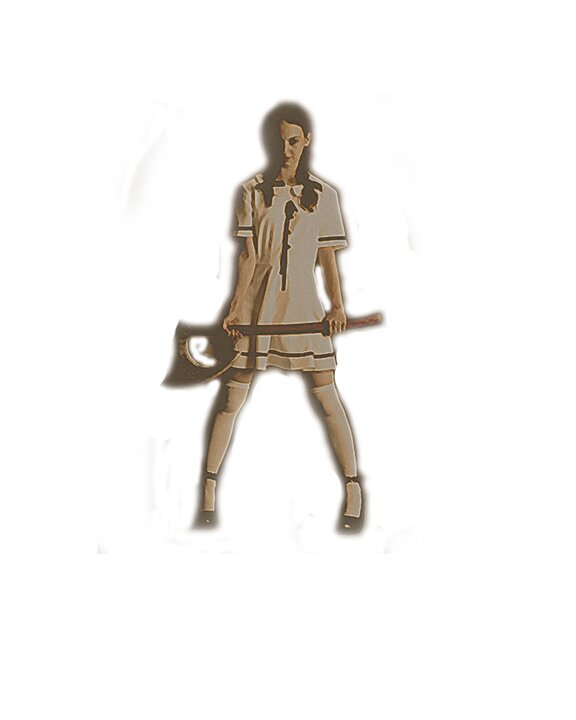
We need to get rid of all the background to this picture. Rather than cut it out with the pen tool, I want to erase around it with a soft eraser. By doing this, you will get an ever so slight glow around the subject that will add a nice touch later on in this tutorial.
After you have erased the background, set the layer fill to 80%. You should have something that looks similar to this:
Step 6
Now we will add the background. I am using this: Text. Paper frame 2 by ~GeneralVyse
Create one layer of this image so that it covers the entire area of our canvas.
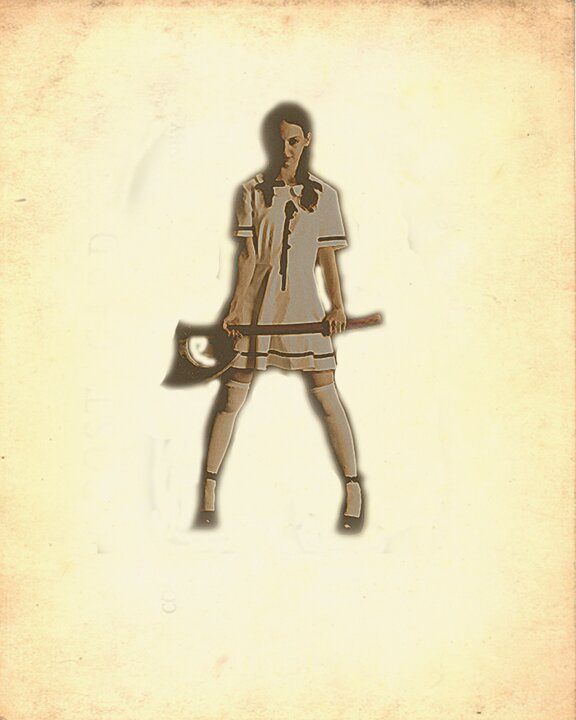
Create a second layer of the same image with a small portion of the white border showing.
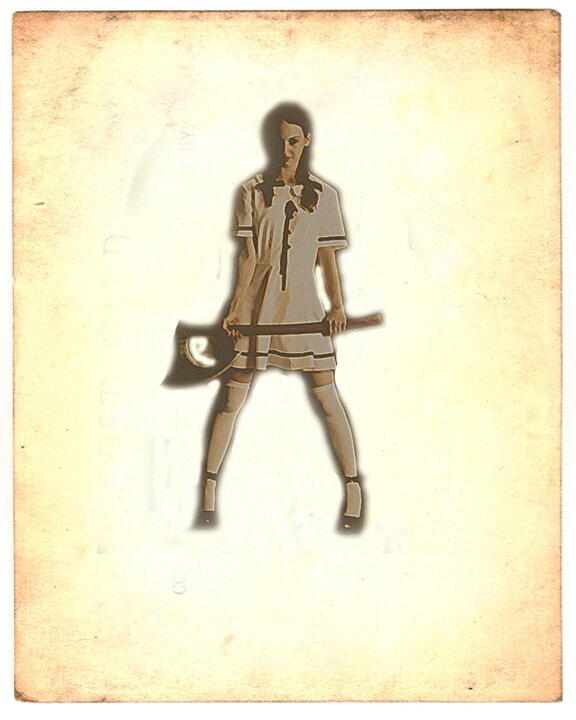
Step 7
Use the Magic Wand Tool to select the white border on our most recent layer. Once you have it selected, delete it.
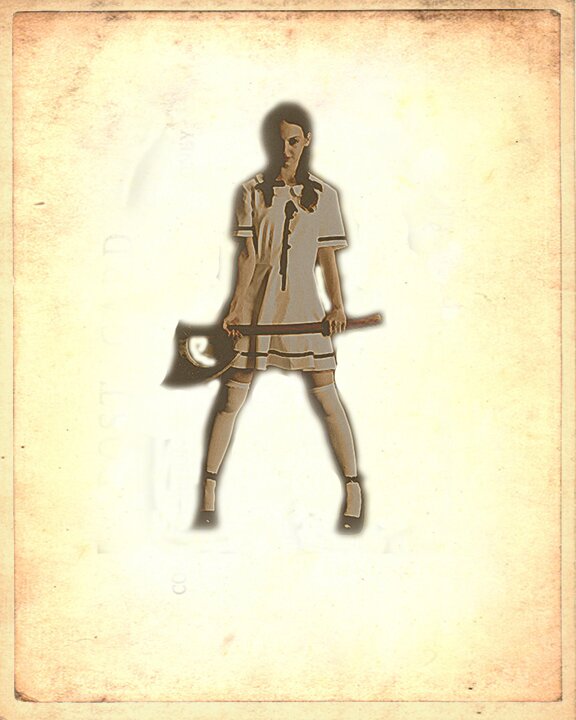
Step 8
Using the layer we just masked, add a color overlay to it.
Click on the image layer>the right click on the layer>select Layer Properties>Color Overlay
Change the color to #863838
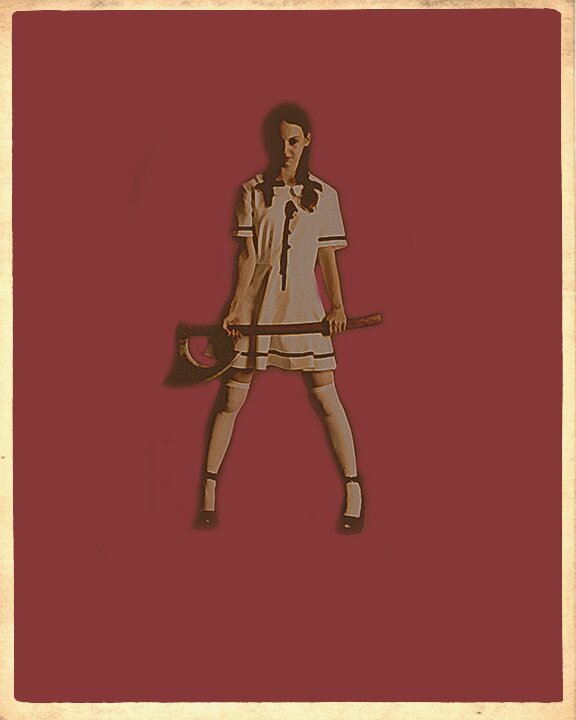
Step 9
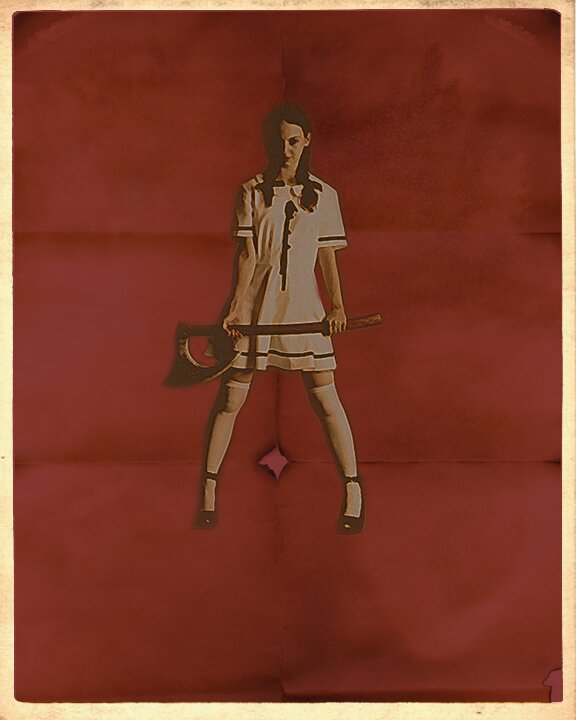
The Planet Terror poster looks as though it has been folded up. So, we need to do the same. I will be using this stock image by scol22.
Download the image and then do a simple Copy of it.
In the layers pane, Control click on the layer we just turned red to Mask it.
Go to Edit>Paste Into
Re-size and rotate the image to fit inside the mask.
In the Layers pane, change the blend mode to Multiply.
Step 10
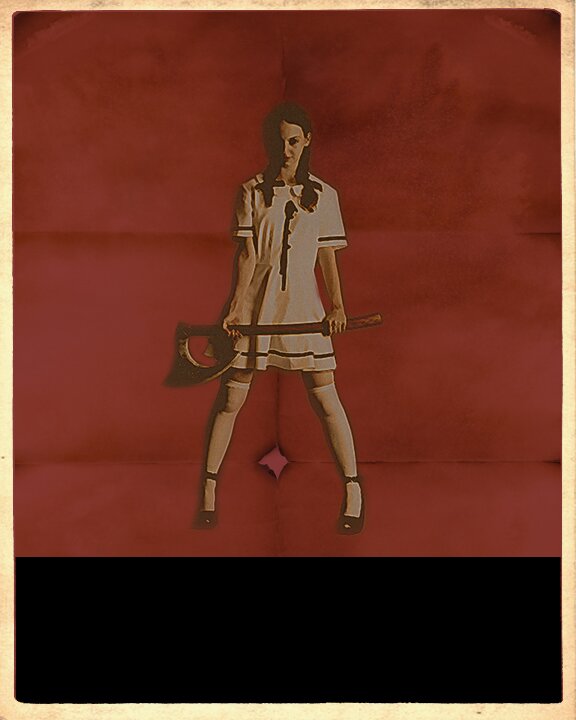
Draw a black box near the bottom of the poster. Once you have got it to the right size and shape; in the Layers pane, right click on the black box layer and click Rasterize.
You will notice that some of the back is running over onto our border. Here is how we can fix that; while you have the black box layer selected in the Layers pane, Control click on the layer we made red.
Then right click in side the mask and select Inverse. Now hit delete and the excess black should be trimmed away.
Step 11
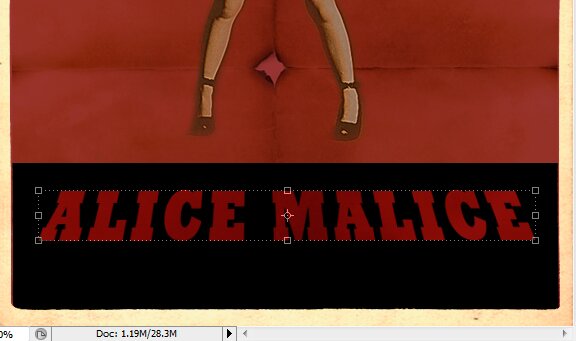
Type the title of your movie on top of the black box, but under your folded paper layer.
Next, in the Layers pane, right click on the movie title layer and click Rasterize Type.
With the Move Tool, click on your movie title so that the Transform Box Show up.
Hold Down the Control key and click on the bottom right corner of the Transform box.
By clicking and dragging, you can distort the text so that it has the angled effect that we see on the Planet Terror poster.
Repeat the above steps for the left side of the text as well.
Step 12
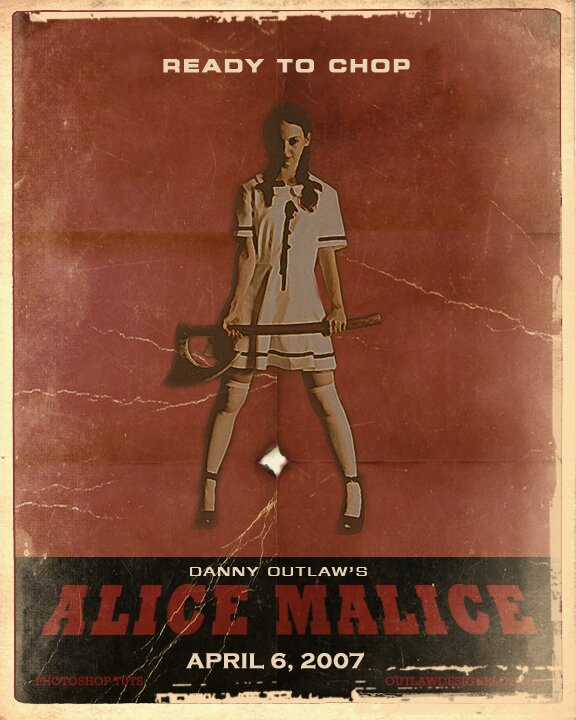
Start adding the random text to your movie poster how ever you see fit. I will be using the Planet Terror for reference.

Step 13
To finish off the poster, we need to use some Photoshop Brushes to rough up the poster.
Make sure that you create a new layer for every few brush strokes so that if you dont like some of them, you can delete the layer.
Do not make brush strokes on any of the image layers.
Create a new layer. Next; in the layers pane, Control click on the main red layer we created in step 7. This will mask your new layers so that your brush strokes will only show up on the poster.
There is no easy way to explain how to do this, you just have to play with it. Here is my finished result.


34 Comments
Thanks Danny, that’s an awesome tutorial. Really appreciate the way that you lay out your lessons, makes them easy to follow and doesn’t skip over the details. Helping me really develop my Photoshop skills so I can implement a lot more of the kind of design work I want to.
Cool. Thats good to hear. I wasn’t sure if I made it to simple and not detailed enough. Im glad you like it. There will be many more in the future.
What brush did you use for the cracks in the paper? They look great.
They were a handmade brush set from some images I found online.
Are they high resolution? I would love a copy.
Likewise, would love to get my hands on the brushes you used for this. The last step totally makes the poster.
http://twitter.com/suedecrush
wow, amazing tutorial and outcome..and your blog is also amazing, I really like the new style
cheers, bernd
cool. Glad you like it!
Danny,
Wow, I love the theme — it was a great tutorial wow — did I mention I love the theme?
Did I mention that you mentioned you loved the theme?
Hi, love this tutorial and really looking forward to giving it a go. However, everytime I load this page, the image that shows these levels Image>Adjustments>Levels comes up as an irritating broken image link, i was wondering if you could tell me what they were? Cheers
someone else pointed this out. I’ll look into it today.
Great stuff Danny. Love the new site design as well. Thx.
Thanks Sean. Nice to hear.
Really funky result! reminds me a bit of the old propaganda posters as well.
Really funky result! reminds me a bit of the old propaganda posters as well.
Absolutely fantastic tutorial, I started from the top with out having a sneaky look at the end result. You did a good job. I am going to have a go at playing around with a few images to come up with some cool art work.
i know this is a stupid question, but I couldn’t get a white border for the layer on step 6. I went ahead without it. But how do you add it? Tried everything but it wouldn’t allow me. Thanks
wow great stuff, i like the new layouts and also this tutorial!
And also that search site strip makes some inconvenient to read the site!
And in ur facebook link u type hhttp: instead of http
Very cool. Love to see a few more.
Hey, I’m dropping by because you got featured on Smashing Magazine.
Very nice tutorial and blog design.
Thanks!
Wow CowGirl look hahah nice tutorial!
Very interesting but its the last step that really makes it something special. Can you give us a more detail here. Its a huge step from the end of the tutorial to the finished poster you show.
Cheers
Chris
This last step is hard to explain. Its really just trial and error with various photoshop brushes. My suggestion would be to find a few crack or old paper brushes and play with them.
Agreed on 13 being a huge jump. I understand it’s hard to describe how you brushed, but info like brush color, layer order, and what to do after control+clicking on the red layer.
This tutorial is awesome, I’m just getting stuck on the last step because, for me, it’s unclear as to how to integrate the brush strokes into the poster, to get that cool aged look you created.
ur work is nice…i like it…
Absolute coolness! I love the effect of the hole in the center fold part of the poster. Very realistic work, it does look very worn and old. Even the creases look good. Thanks so much for sharing such inspiring work. Will definitely try this one out!
Hey Danny, thanks for the tutorial. The finished poster looks pretty good, and that is what really matters. I’m sure that one might choose to follow different steps or techniques for achieving the same effect but hey, if it comes out well in the end, who cares how you did it, right? That’s the way I’ve always felt about using Photoshop. You can achieve the same effect in so many different ways. It doesn’t tie you down. And that’s what makes it so great!
Great comment. Im no photoshop master and I am sure there may be better ways to do the same things I do, but its the end result that counts.
Glad you liked the tut.
Sweet. I used a similar direction in an ad campaign for a brewery a few years back. I found that working with the main image in duplicate allowed me to be more selective about where the crosshatch effect was visible - resulting in a cleaner visual. I was able to maintain that low-end print quality look exactly where I wanted and avoid the global filter effect.
Hii Danny! Very nice, thx…. I’m from Brazil… I’m studuyng Graphic Design, so this is great for me! See you ^^
wow really cool result, thanks for sharing
OK found a great resource to finish this project, from this site! I know peoples frustration when you see the last step in this tutorial and say “Well how the hell can I create that crackling paper effect?”
Its true you have to mess around a bit but if you download the “DemolishedCracks2.abr” you can get the effect I think you all are looking for. Also the “Gringe_Brushes_005_by_Tackybrush.abr” is a must have.
Again GREAT tutorial!
22 Trackbacks
[...] How to Make a Planet Terror Style Poster in Photoshop [...]
[...] How To Make A Planet Terror Style Poster - Outlaw Design Blog [...]
[...] poster similar to that of the original Hannibal movie poster. Its not an exact replica like my Planet Terror Poster Tutorial, but it is still pretty cool. I tried to make this one a little easier to follow, but I am still [...]
[...] poster similar to that of the original Hannibal movie poster. Its not an exact replica like my Planet Terror Poster Tutorial, but it is still pretty cool. I tried to make this one a little easier to follow, but I am still [...]
[...] poster similar to that of the original Hannibal movie poster. Its not an exact replica like my Planet Terror Poster Tutorial, but it is still pretty cool. I tried to make this one a little easier to follow, but I am still [...]
[...] How to Make a Planet Terror Style Poster in Photoshop [...]
[...] How to Make a Planet Terror Style Poster in Photoshop [...]
[...] How to Make a Planet Terror Style Poster in Photoshop [...]
[...] How To Make A Planet Terror Style Poster In Photoshop Source OutLaw Design Blog [...]
[...] Planet Terror Style Movie Poster [...]
[...] Planet Terror Style Movie Poster [...]
[...] Planet Terror Style Movie Poster [...]
[...] Planet Terror Style Movie Poster [...]
[...] Planet Terror Style Movie Poster [...]
[...] Planet Terror Style Poster via Outlaw Design Blog [...]
[...] Planet Terror Style Poster via Outlaw Design Blog [...]
[...] Planet Terror Style Poster via Outlaw Design Blog [...]
[...] Planet Terror Style Poster via Outlaw Design Blog [...]
[...] Плакат в стиле "Планета страха" [...]
[...] Planet Terror Style Poster via Outlaw Design Blog [...]
[...] Planet Terror Style Poster via Outlaw Design Blog [...]
[...] Planet Terror Style Poster via Outlaw Design Blog [...]