InDesign is a beast of a program to get in to; mostly because it’s so complex. This tutorial should scratch the surface a little bit of what it’s capable of, and introduce you to many of the fun tools. The tutorial itself is fairly generic, but assumes a basic knowledge of Adobe products. Don’t worry; if you’re knowledgeable in Photoshop or Illustrator, you should get along fine. InDesign’s tools function in a very similar way. I’m going to take you through designing a basic flyer. Knowing how to put something simple like this together is great because you can put together announcements, invitations, signs, letterhead, or any other type of one-sheet design. I’m going to put together a flyer for a mock concert- this will let us play a little bit and we’ll be able to go through many of InDesign’s most-used tools.
Step 1: Layout Sketches
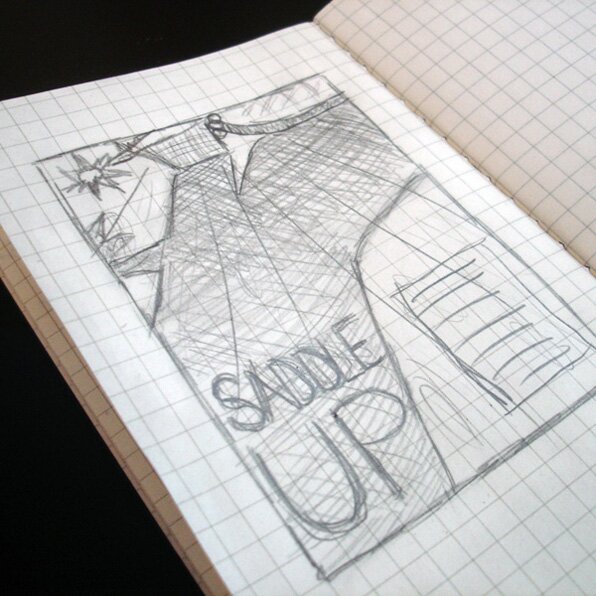
The basic idea of this flyer is to look like a concert announcement. What we’re going to start with is a rough sketch of the idea. This doesn’t need to be complicated or elaborate, but thinking about it a little will give you a plan of what your design will include. It’s also easier to try out different layouts with quick sketches so you can decide what goes where. For sketching I use a small Moleskine with graphed pages that is easy to carry with me, but you can use anything you have available. I do prefer graphed paper for print sketches because it makes placement easier. (Tip- Download free printable graph paper from Incompetech)
I’m going to try to make my flyer look like a long shadow cast onto a floor by a cowboy boot to give the western feel for my mock event. It will use a lot of perspective and just a couple simple graphics. As you can see in the photo, I have set up my major graphics and where my copy will go. Now, we can look for all the assets we’ll use.
Step 2: Collect ‘Mise en Place’
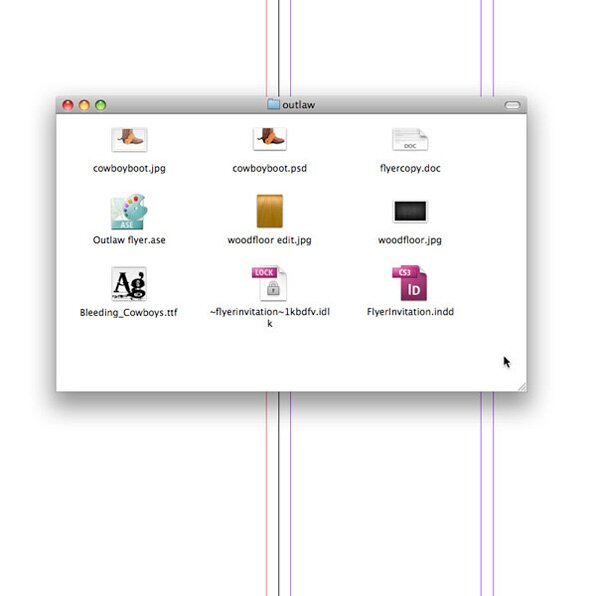
I’ll borrow a term from the culinary world here- ‘Mise en place’ is the concept of having everything you need ready to go. Similar to having all your ingredients gathered, measured, prepared, etc., we need to collect all of our components. It’s good practice to keep all of your project elements collected together so they can be ready to use at any time. This is also good practice if you are working with an established brand or concept to keep things consistent. For this example, there are several things we can collect or decide upon before we start based upon our sketch:
- Images: I’ve found a wood texture from DeviantArt (free), and a cowboy boot from Shutterstock (stock).
- Colors: I’m using a scheme from Adobe Kuler, or sample colors from your images
- Fonts: I found Bleeding Cowboys on DaFont for my main text and am using Handvetica, also from DaFont to convey the style I want.
- Copy: The small amount of copy I need is ready to go.
This step would also include basic document setup- get your page, margins & bleed, and document grid together, and set up or import your color swatches before you start. If you’re new to InDesign, I’ve written a 101-style tutorial on how to set up your document that you can check out on my blog here. As you can see in the screenshot, I’ve gathered all my items into a folder and saved my document complete with margins and guides to the same folder. Now we’re ready to start pulling everything together.
Step 3: Adding Graphic Elements
The first thing we should do is add graphics- photos, illustrations, shapes, color fills, etc. Graphics in InDesign work similarly to Illustrator, where each item is its own object, as opposed to Photoshop, which uses layers to distinguish objects. There are two main methods to adding graphics- Place or Draw, and we’re going to be using both methods here.
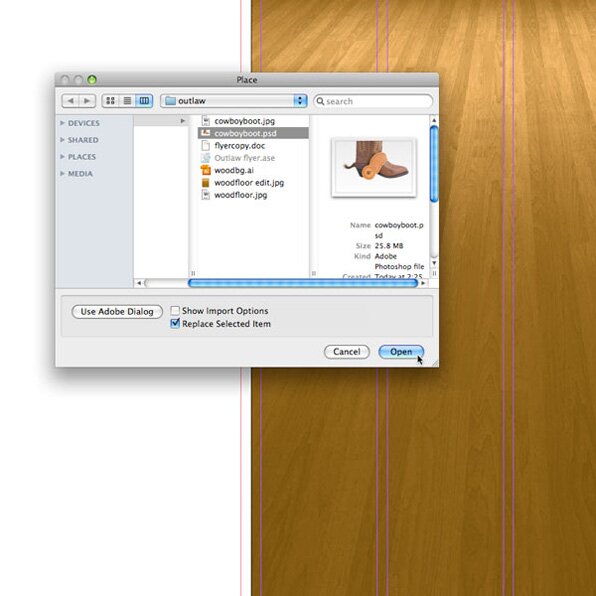
1. Place: I’m going to be simulating a wood floor as a background. I’ve found a stock vector of the texture and distorted it to have the perspective I need and have colored it appropriately using Photoshop. To add this to the document, go to the File menu and select ‘Place’ which will bring up a file browser. Navigate to the folder you’ve placed all your assets in, and select the floor image and click Open. The cursor will show you a tiny preview of your item and give you a cursor to place the top left corner of your item, and when you click, your item will be dropped on your canvas. For the boot, I am using a stock image that I have extracted from its background in Photoshop. I’ve also added a darkening layer to enhance the light effect since the side of the boot we are looking at is the shadow side. Follow the same procedure to place the photo of the boot. (Tip- The keyboard shortcut for Place is CMD/CTRL + D) I’ve dragged the boot to the top of the page so just the bottom is visible. The thing to note here is that any manipulation of the images (color, effects, texture, etc.) need to be done first, then the finished image placed into InDesign.
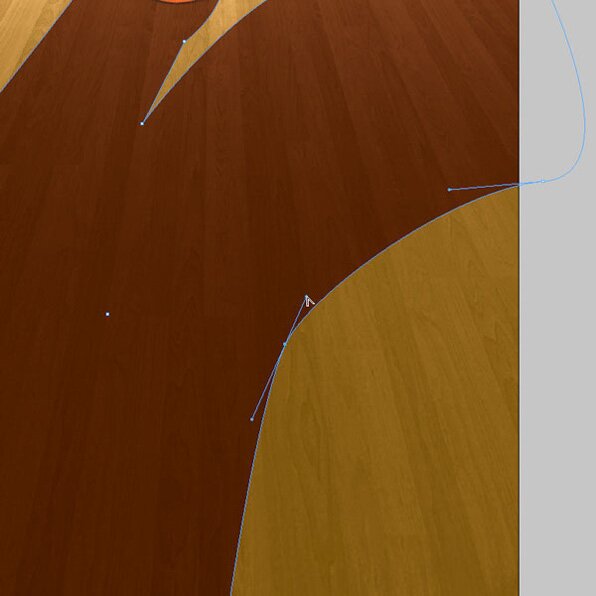
2. Draw: To draw regular shapes, you can use the preset tools for rectangles, ellipses, and polygons. Since we’re going to be adding a free-form shape to be the cast shadow for our boot, we’ll use the pen tool. If you’ve never used the pen tool, I recommend learning a little bit about how it works first . If you’ve only used the pen tool in Illustrator, don’t worry; it works the same in InDesign. (Try the tutorials here.) This shape may require a little imagination, but the idea is to make it look like the shadow would if the light source were very low to the ground, like at sunset. When I created my sketch, I set up an actual boot and a lamp to get the perspective right, so I’ll follow that. Use a combination of clicking, and clicking and dragging to get the curves and corners to match your sketch. Once you’ve created your shape with the pen tool, if you need to tweak the shape, switch to the Direct Selection tool, which also works the same as in Illustrator. (Tip- Under the View menu, you’ll find options for Screen Mode. Switching between Normal and Preview is helpful to get an idea of how your items will look once the page is cropped.)
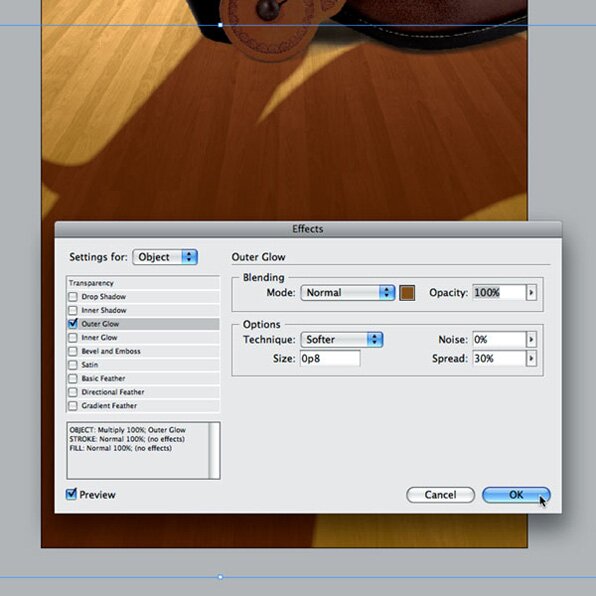
For the color, I’ll pick the darker brown in my color palette. I’m also setting the blend mode to Multiply in the effects palette to allow the wood texture to show through. Now, to make it appear more shadow-like, I’m going to add an outer glow that will soften the edges. Select your shape, and go to Object > Effects > Outer Glow… This will bring up the Effects palette where in addition to adding a glow, you can add drop shadows, feathers, and other transparency effects. Instead of using white, I’m going to pick the same brown I filled the shape with, and I’m going to change the settings to Normal blend mode, 100% opacity, and adjust the size and the spread to make it seem more realistic.
Step 4: Adding your copy
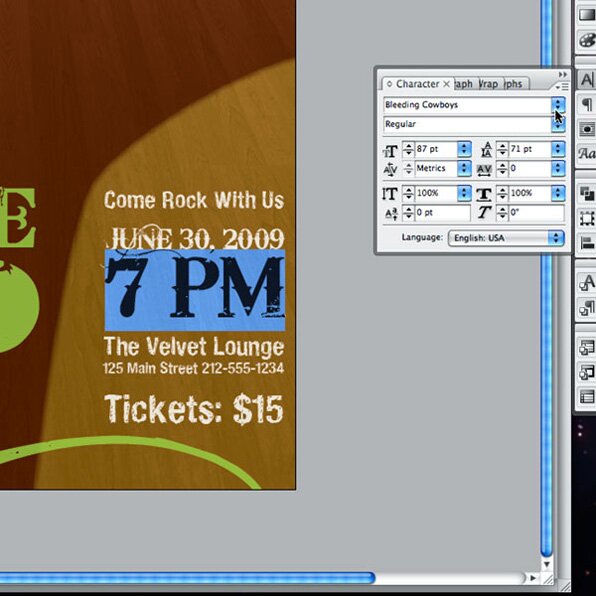
We’re going to be adding two main areas of copy- our headline text, and our other event information. To do this, I set up two text frames. Use the text tool to draw your header text frame following your guides. Type in or copy and paste your header text. In the Character palette, select the header font you’d like to use; I’m using the Bleeding Cowboys font I downloaded earlier. I’ve adjusted my font size to be as large as possible for each word to fill the entire width of the text block. Once you have the layout the way you want, then select all of your text, and add color. I’m selecting the lime green accent color in my swatches. As a final realistic effect, switch to the selection arrow, and using the Effects palette, drop the opacity slightly. This will give it some additional texture.
Using the text tool again, draw a second text frame for the secondary copy, and again, type in or paste your text. This frame will be a little more complex, as each individual piece of type will be formatted individually. In my case, the process is to select each line, set the font and font size, tweak the tracking and kerning to get the optimum fit within the text area width, and then tweak the leading to adjust the distance between lines. (Tip- Double-clicking will select a word, but triple-clicking will select an entire line of text.) I’m using a combination of my header font, Bleeding Cowboys, and my secondary font, Handvetica, to keep the emphasis on the important information; in this case the date and time. Make sure that your two typefaces are distinct enough to give your information a proper hierarchy. Again, select all the text and add its color- I’ve chosen the light tan from my swatches- and drop the opacity slightly.
Step 5: Finishing Touches
Now is the time to take a look at the overall design with all of the elements in place. In most cases, your first try is going to need some tweaking. In my case, I decided my text was too close to the edges of my pages, so I moved it slightly. I also decided to adjust the shape of the boot’s shadow so that it better fit between my text areas. This tweaking is all going to depend on the look you’re going for, and can be very subjective. Get used to how the tools in InDesign work and most importantly have fun with it! Here’s my finished product:

How did yours come out? Share with everyone in the comments!


7 Comments
Brilliant work! thanks for posting.
In a way I think all Adobe programs are “beasts” to get into, however once you have been shown around its easy to see why they lead the industry. In other words user-friendly once show how to use them. Billy Gee.
Another great looking result in this tut, started getting my head around indesign.
It might be a good idea to say why the final you show is a PDF file, and maybe talk about the ways to make an inDesign file a PDF.
This looks great I really enjoyed the shadow walk through. Turned out good too. Mad props for using InDesign. Thanks
Nicely put together. When I originally had a look I thought it was just a nice photo of an old cowboy boot, good use of photoshop.
Beautiful flyer. Thanks for sharing!!
9 Trackbacks
[...] Indesign Flyer - Outlaw Design Blog [...]
Design a Cool Outlaw Flyer with InDesign Tutorial…
InDesign's tools function in a very similar way to Photoshop. I'm going to take you through designing a basic flyer with InDesign.
…
[...] Design a Cool Outlaw Flyer with InDesign Tutorial - InDesign is a beast of a program to get in to; mostly because it’s so complex. This tutorial should scratch the surface a little bit of what it’s capable of, and introduce you to many of the fun tools. [...]
[...] Design a Cool Outlaw Flyer with InDesign Tutorial [...]
[...] Design a Cool Outlaw Flyer with InDesign Tutorial [...]
Design a Cool Outlaw Flyer…
This tutorial should scratch the surface a little bit of what it’s capable of, and introduce you to many of the fun tools….
[...] Design a Cool Outlaw Flyer with InDesign Tutorial [...]
[...] InDesign is a beast of a program to get in to; mostly because it’s so complex. This tutorial should scratch the surface a little bit of what it’s capable of, and introduce you to many of the fun tools. Here is the original: Outlaw Design Blog » Design a Cool Outlaw Flyer with InDesign Tutorial [...]
[...] Design a Cool Outlaw Flyer with InDesign Tutorial [...]